The Editor window
Window > Flagsmith lists the flags of one environment and lets you change them.
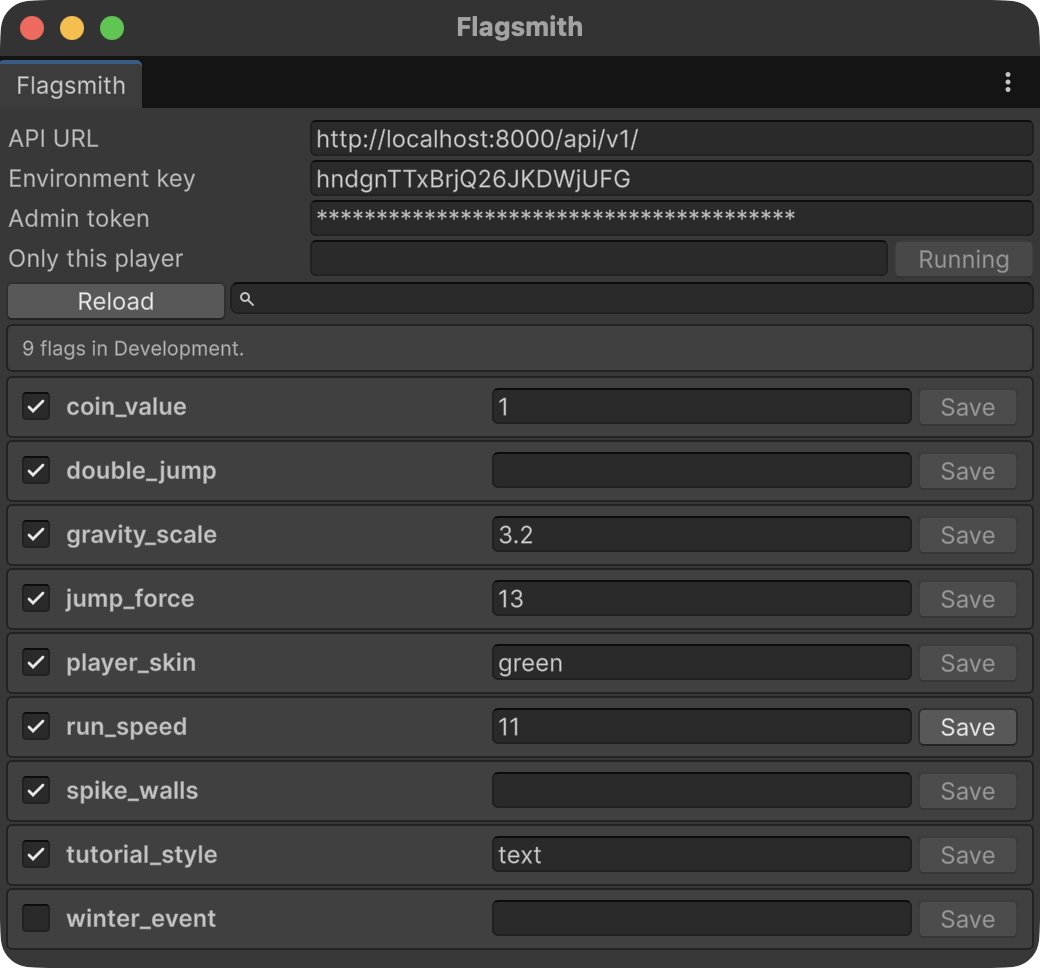
| Field | What to enter |
|---|---|
| API URL | https://api.flagsmith.com/api/v1/ for Cloud (the Management API, not the edge URL), or your self-hosted /api/v1/ |
| Environment key | The client-side key of the environment to edit |
| Admin token | An Organisation API key, or your user API token from Account settings |
The fields are stored in EditorPrefs, which is per user and per machine, so the admin token never ends up in your project or in version control. Edit the toggle or the value, then press Save on that row. Segment overrides aren't shown; edit those in the dashboard.
Changing a flag for one player
Fill in Only this player with a player ID and press Reload. In Play mode, the Running button fills in the ID of the game you are playing. On a tester's device the ID is FlagsmithBehaviour.Identifier; show it somewhere in your debug UI so testers can read it out.
The window then lists the flags as that player gets them, with (this player) beside any flag they already have an override for. Save writes an override for that player only, and Clear removes it, so the player goes back to the environment's value. A player appears in Flagsmith once their game has fetched flags at least once.
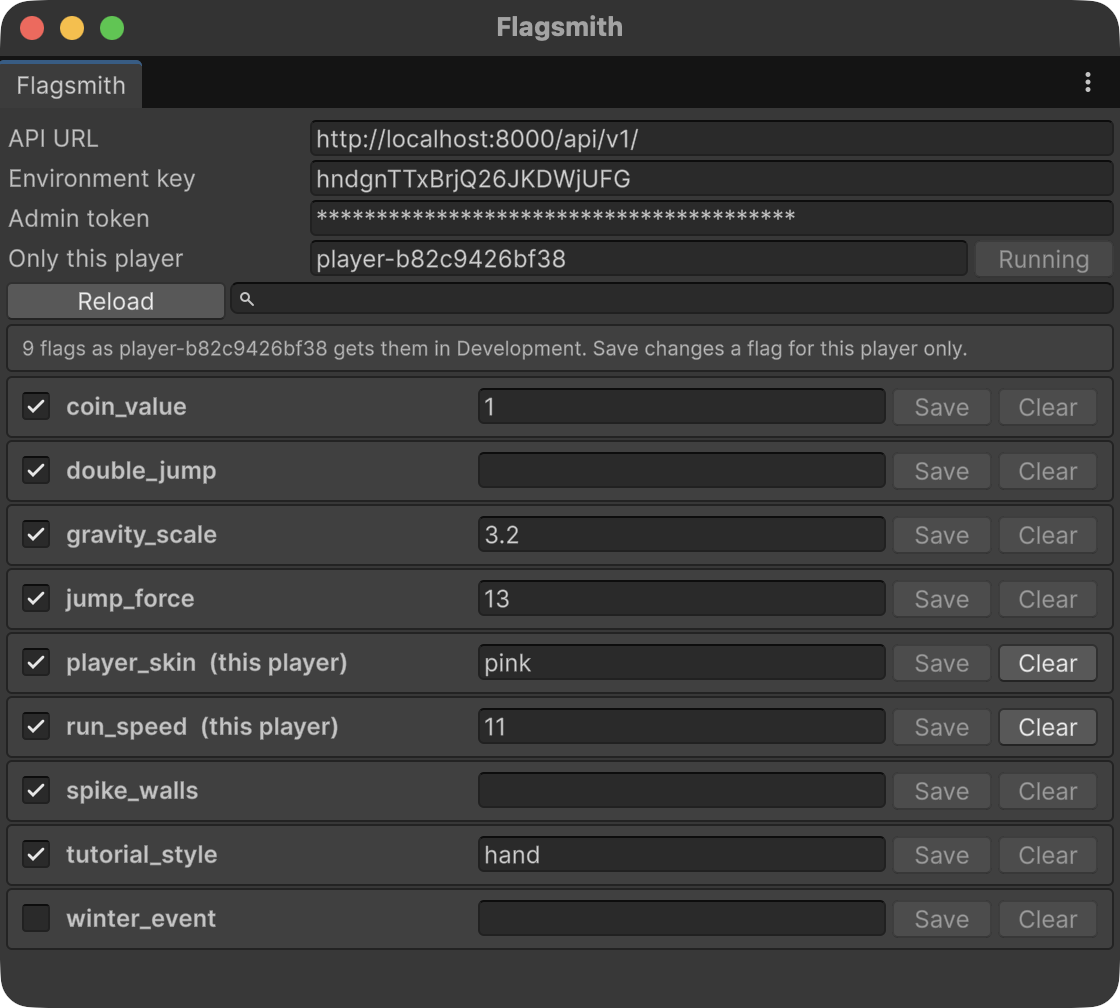
If a request times out after the server accepted it, press Reload: the window reads the player's overrides again.